AI Workflows
How to create your first audio overview from your sources
Turn your reading into a focused audio discussion in notebaseAI. Choose sources, set the format and voices, write a useful focus topic, and review the result.
- Audio
An audio overview turns selected reading into a discussion between two AI-generated hosts. Use it to prepare for a class, revisit a paper, or refresh your memory while listening. Your first overview works best with a small source set and one clear goal. Here is how to create it in notebaseAI and use the result alongside your reading.
1. Choose a focused set of sources
Open a notebook and add the material you want to discuss. Use Upload files for a PDF or Copied text for notes you paste into the source dialog. Wait for processing to finish, then use the source checkboxes to select the ready material you want the overview to use.
Start with one paper, one chapter, or a few sources about the same question. Adding unrelated material makes it harder to give the episode a useful direction. Open a source and check that its text is readable before generating, especially if the PDF is scanned or has complex tables.
For a small practice source, use the fictional urban tree pilot PDF from our guide to PDF questions and citations. It describes summer observations and the limits of drawing a broader conclusion from them.
2. Pick a format for your goal
In Studio, open Audio Overview. Choose a format based on what you want to understand. For a first attempt, Explainer is a useful starting point.
| Format | Your goal | What to expect |
|---|---|---|
| Brief | Get oriented | A concise summary before you read in detail. |
| Explainer | Learn an unfamiliar topic | A guided walkthrough of the main ideas. |
| Deep dive | Revisit a complex reading | Detailed analysis of the selected material. |
| Debate | Explore two viewpoints | A discussion of perspectives supported by the sources. |
| Tutorial | Follow a process | A step-by-step explanation when the sources describe one. |
The format guides the presentation. A Debate still needs evidence for its viewpoints, and a Tutorial needs a process the material actually describes. The choice cannot supply information missing from the sources.
3. Set duration, language, and voices
Try a five-minute overview first. Free accounts can request up to 5 minutes, and Pro accounts up to 120 minutes. Duration is a target; the finished recording can be shorter or longer. A longer target is most useful when the sources contain enough material to support it.
Set Language to the language you want to hear and Pace to Slow, Normal, or Fast. Select a voice for Host 1 and Host 2. The speaker buttons beside the voice selectors play short previews. Marin and Cedar are the default choices; listen to both before deciding.
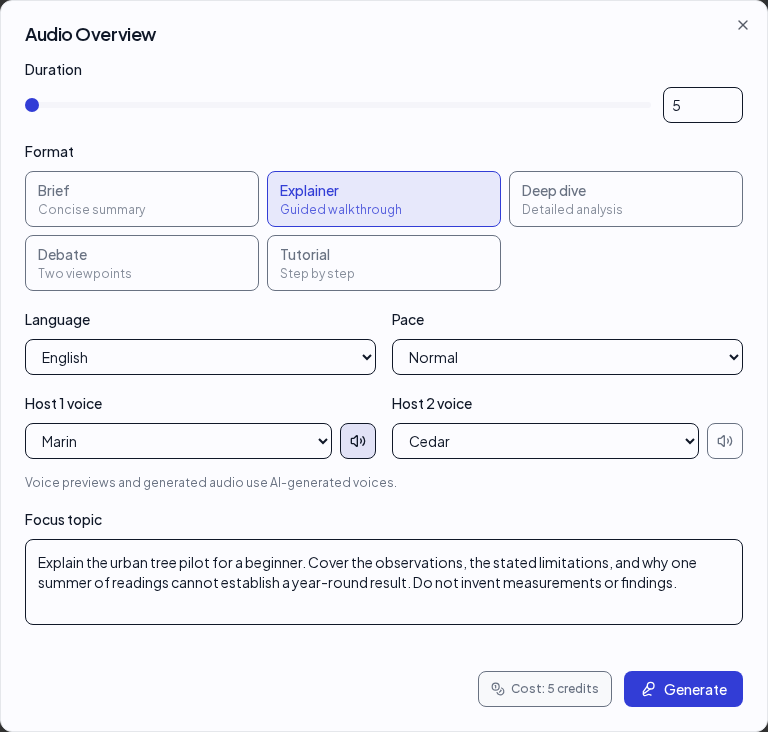
4. Give the discussion a focus
The optional Focus topic field tells the hosts what matters to you. Name the topic, the audience, and the question you want the episode to address. Specific instructions are easier to evaluate than a request to cover everything.
For the fictional practice PDF, try:
Explain the urban tree pilot for a beginner. Cover the observations, the stated limitations, and why one summer of readings cannot establish a year-round result. Do not invent measurements or findings.
For your own paper, replace the pilot with its topic and ask for a distinction that matters to you: findings versus interpretation, agreement versus disagreement, or a method versus its limitations. Keep the request grounded in the selected reading. You can enter up to 500 characters.
5. Generate, listen, and check
Review the credit cost shown beside Generate. A five-minute request currently costs 5 credits. Check your available balance and settings, then select Generate once. The overview runs in the background and appears in the notebook with its progress. It can take several minutes; the target audio duration is not a completion-time estimate.
When it is ready, open the audio item in Studio. Play the recording, follow the transcript, and use Download audio if you want a copy for later. Return to the notebook to revisit the overview and the sources together.
Treat the discussion as a way into the material. It paraphrases and explains the reading; it is not a verbatim recording of your document. When a number, quotation, or conclusion matters, locate it in the original source. If a claim surprises you, ask notebook chat a focused question and open its cited passage before relying on it.
6. When something goes wrong
- Audio Overview is unavailable: wait for source processing, check any ingestion error, and select at least one ready source with its checkbox.
- The duration is capped or credits are insufficient: choose a duration allowed by your plan and check the displayed cost. Review your account or pricing options before starting.
- The overview is still processing: give it time and return to the notebook to check its status. Repeatedly selecting Generate creates additional requests.
- The item shows a failure: read the error and check your sources. Once you have addressed the problem, reopen Audio Overview to make a new request and review its cost again.
- The discussion feels too broad: select fewer sources, choose a shorter format, and write a narrower focus topic. Verify any questionable detail against the source text.