Study Skills
How to turn lecture notes into flashcards and practice quizzes
Choose your study source, customize flashcards and a quiz, practice before revealing answers, and use mistakes to plan your next review. Follow the actual notebaseAI controls with screenshots.
- Flashcards
- Quizzes
- Active recall
Useful study materials make you produce an answer and discover where your explanation breaks down. A large pile of generated questions is less valuable if you recognize the words without remembering what they mean.
This walkthrough uses original practice notes about plant cells, then generates real flashcards and a quiz in notebaseAI. The screenshots show the actual controls and results from a disposable account. Generated questions can vary, and a practice score is not a guarantee of performance on an examination.
1. Choose a focused set of notes
Start with one lecture, chapter, or learning objective. If your next assessment covers membrane transport, a source set containing an entire semester can dilute the practice. Keep relevant details such as definitions, mechanisms, examples, and qualifications rather than pasting only a list of terms.
You can use the plant-cell practice notes to follow the same example. These notes were written for this guide; they are not someone’s private lecture transcript. Add them through Add sources → Copied text, give them a title, and choose Insert.
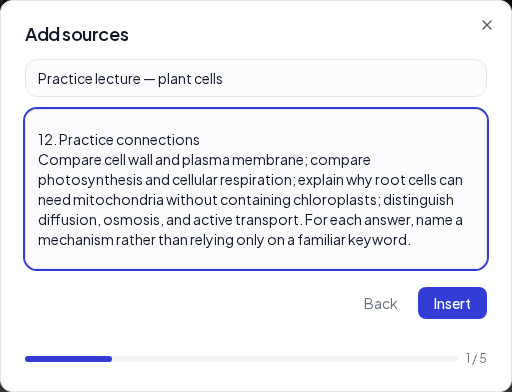
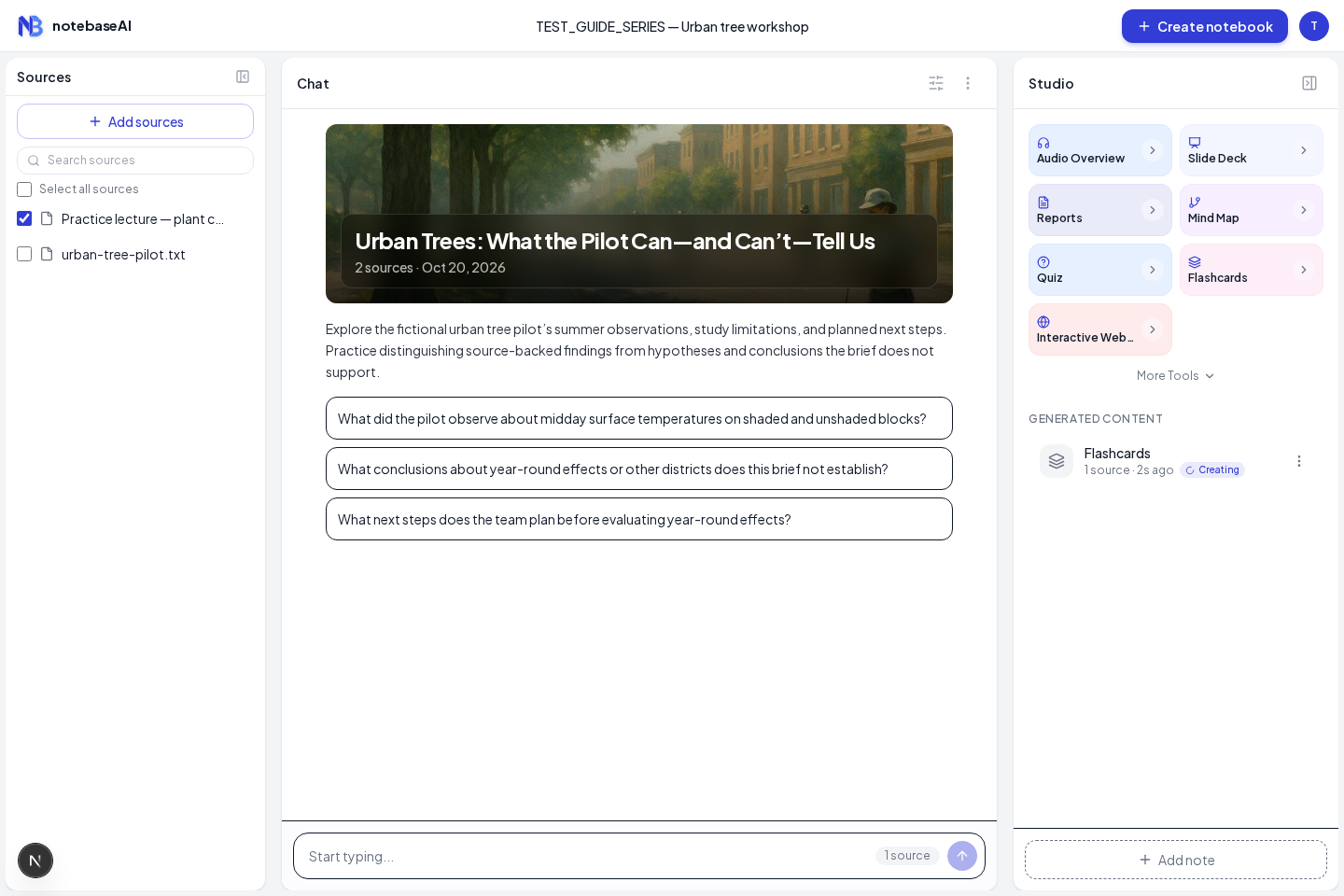
Wait until the source is ready. Select its checkbox and deselect unrelated sources before generating. The source count in the dialog is a useful final check. Selecting several near-duplicate notes does not necessarily add new evidence.
2. Customize and generate flashcards
In Studio choose Flashcards. The customization dialog offers card count, difficulty, and a focus topic. Start with 10 cards and Mixed difficulty for a short, varied first attempt. The current control also offers larger sets; make those when the source has enough distinct material to justify them.
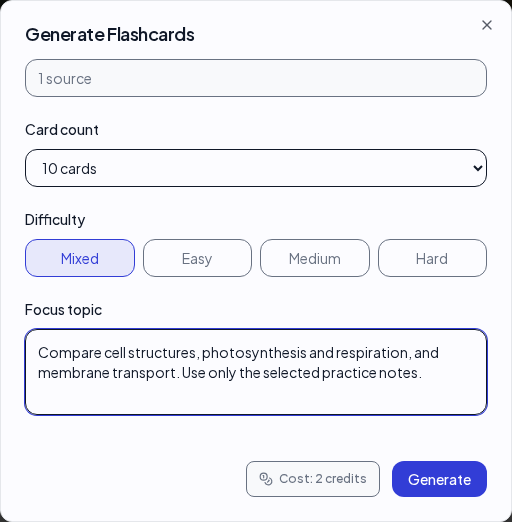
The current flashcard action costs 2 credits; the dialog displays the cost before you submit. Choose Generate once and let the item finish. Creating more cards does not remove the need to check whether their questions are clear and their answers match the notes.
3. Try to answer before revealing
Open the completed flashcards. Read the question, look away, and say or write a complete answer. Then select the card to flip it. Compare the meaning of your answer with the revealed explanation; using the same keywords is not enough if your mechanism is wrong.
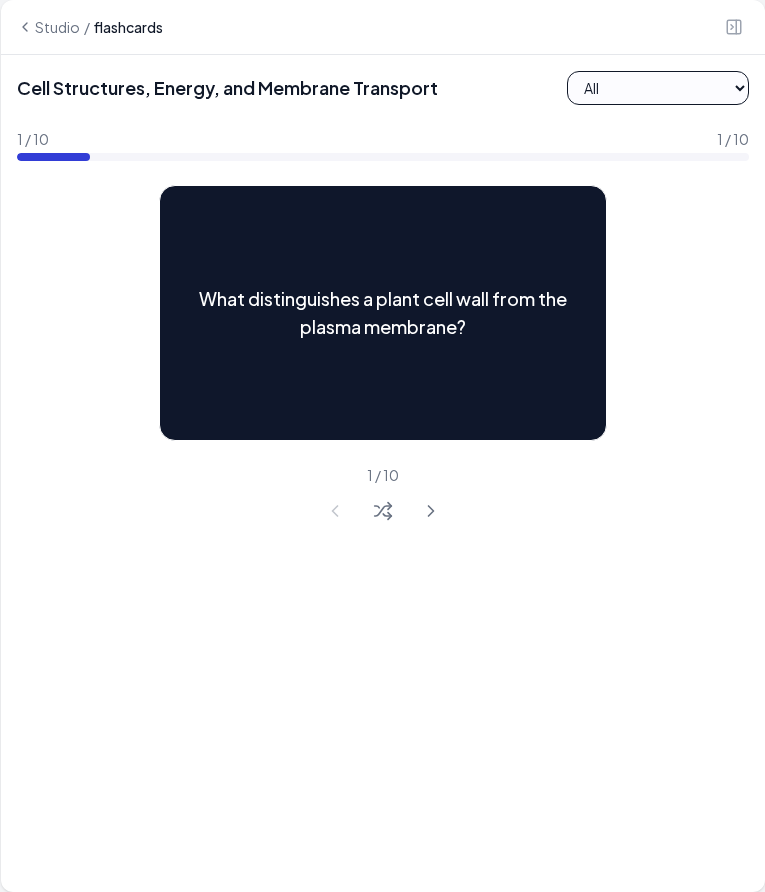
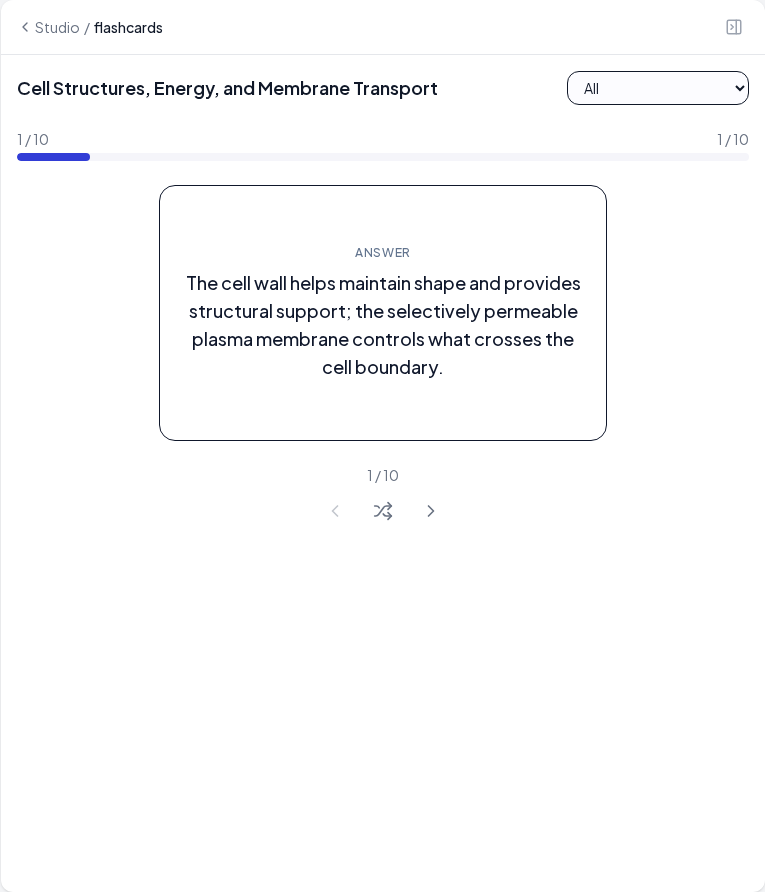
Use the next and previous controls to move through the set. Shuffle once you find yourself answering from the sequence instead of the question. A useful card tests one concept or a purposeful comparison. If it asks several unrelated questions at once, break those into separate prompts in your own notes.
| Weak practice | Stronger retrieval task | What to check |
|---|---|---|
| Remember the word chloroplast | Explain what chloroplasts do and why some plant cells do not have them | Does the explanation distinguish photosynthetic and non-photosynthetic cells? |
| Recite a definition of osmosis | Predict water movement in a stated membrane-and-solute scenario | Have you specified the conditions rather than just saying water moves? |
| Name mitochondria | Explain why a plant cell needs respiration as well as photosynthesis | Do you confuse producing sugars with supplying usable energy to cellular processes? |
4. Generate a practice quiz
Return to Studio’s list, keep the same study source selected, and choose Quiz. Use 10 questions and Mixed difficulty for the initial set. Enter a focus topic that asks for application as well as definitions, and review the displayed cost before generating.
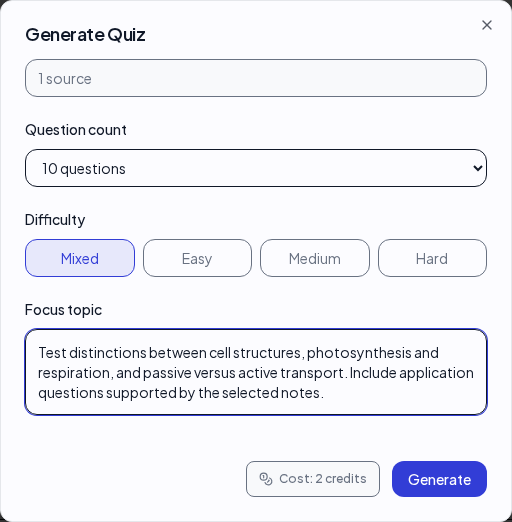
Wait for the completed item, then open it. Read the whole question before choosing an option. A question can be factually correct yet poorly matched to your assessment; compare the practice against your actual course objectives.
5. Use feedback to find gaps
Select an answer to reveal feedback. If you use a hint, distinguish that supported attempt from an unaided one. After a mistake, explain why your chosen answer was tempting and which detail rules it out. Then check the source rather than memorizing the location of the green option.
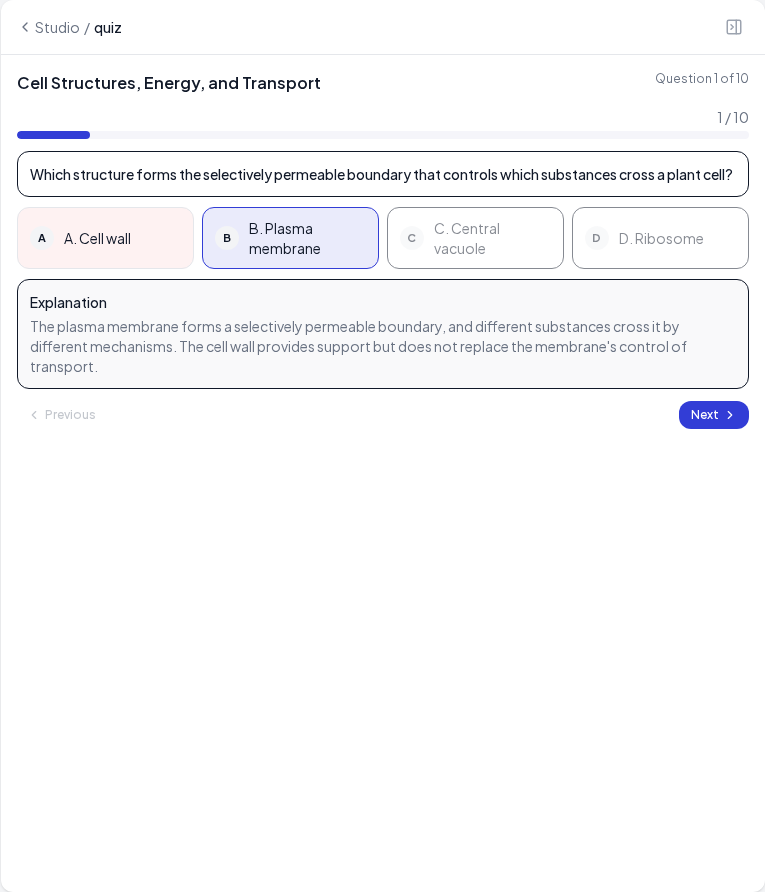
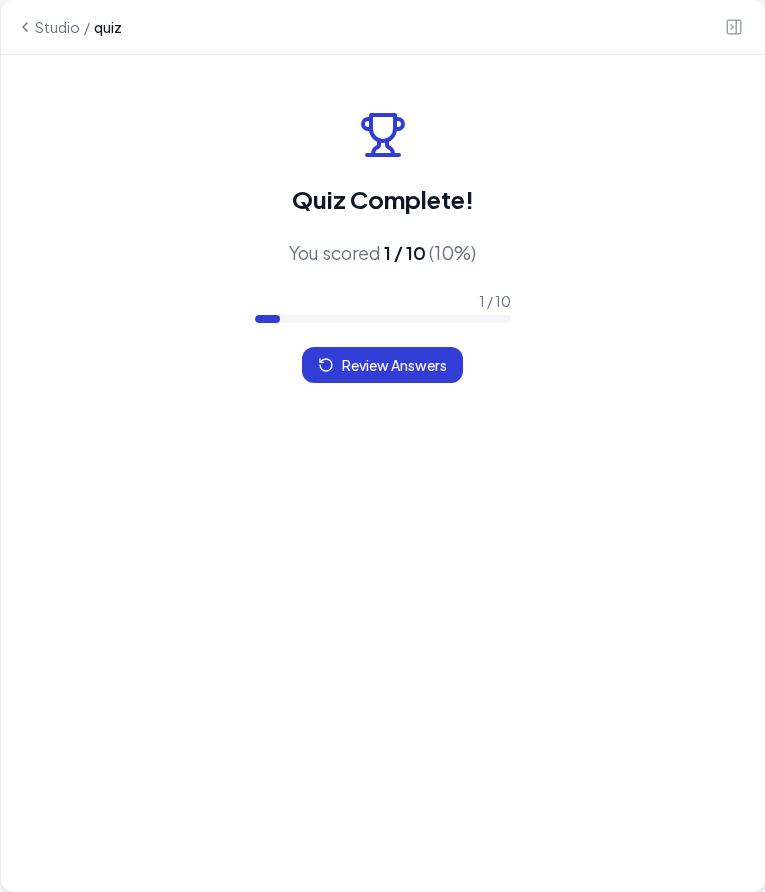
Work through the remaining questions and choose Finish at the end. The result summarizes this attempt, not your overall understanding of biology. Record the concepts behind missed questions and any generated answer that you need to verify.
6. Plan another review
Cornell’s study-strategy guidance describes retrieval practice and distributing practice over time. Apply the principle by returning to the material after a gap and attempting answers before rereading. The best interval depends on what you remember and when you need it; the schedule below is a practical starting example, not a universal formula.
| Session | What to do | What to record |
|---|---|---|
| First session | Attempt the short set and inspect the underlying notes | Misconceptions and unclear generated questions |
| Next day | Try missed concepts without opening the answers first | Whether you can explain the correction unaided |
| Later in the week | Mix these concepts with related course material | Where a similar-looking problem requires a different method |
| Before the assessment | Practice a representative task under suitable conditions | Which remaining gaps affect your actual course objectives |
Write the review plan in a note or your own calendar. This walkthrough does not set up a reminder or claim that the app will automatically follow the example schedule.
7. Check the material and troubleshoot
If questions are repetitive, narrow the set or provide richer notes. If material is irrelevant, revisit the selected source checkboxes and focus topic. If a generated answer seems wrong, verify the exact passage and keep the correction in your notes; do not train yourself to reproduce an error.
If generation fails, read the job or credit message before submitting again. A ready source and an available account balance are prerequisites, not evidence that every attempt will succeed. Avoid reusing the same completed quiz so often that you learn the options instead of the subject.
For help keeping an error log, follow the research-notes guide. If the source itself is hard to understand, begin with the difficult-paper reading method before generating more practice.